PC 용 Cubit — AR Ruler Toolkit
- 카테고리: Utilities
- 최근 업데이트: 2020-02-25
- 현재 버전: 1.5.5
- 파일 크기: 12.43 MB
- 개발자: Made by Windmill, LLC
- 호환성: 필요 Windows XP, Windows Vista, Windows 7, Windows 8, Windows 8.1 and Windows 10, Windows 11


PC에서 Cubit — AR Ruler Toolkit 용 호환 APK 다운로드
| 다운로드 | 개발자 | 평점 | 점수 | 현재 버전 | 성인 랭킹 |
|---|---|---|---|---|---|
| ↓ PC용 APK 다운로드 | Made by Windmill, LLC | 0 | 0 | 1.5.5 | 4+ |
호환되는 PC 앱 또는 대안 확인
| 소프트웨어 | 다운로드 | 평점 | 개발자 |
|---|---|---|---|
| Cubit — AR Ruler Toolkit |
PC 앱 받기 | 0/5 0 리뷰 0 |
Made by Windmill, LLC |
에뮬레이터의 중요성은 컴퓨터에서 안드로이드 환경을 흉내 내고 안드로이드 폰을 구입하지 않고도 안드로이드 앱을 설치하고 실행하는 것을 매우 쉽게 만들어주는 것입니다. 누가 당신이 두 세계를 즐길 수 없다고 말합니까? 우선 아래에있는 에뮬레이터 앱을 다운로드 할 수 있습니다.
A. Nox App . OR
B. Bluestacks App .
Bluestacks는 매우 대중적이므로 개인적으로 "B"옵션을 사용하는 것이 좋습니다. 문제가 발생하면 Google 또는 Naver.com에서 좋은 해결책을 찾을 수 있습니다.
Bluestacks.exe 또는 Nox.exe를 성공적으로 다운로드 한 경우 컴퓨터의 다운로드 폴더 또는 다운로드 한 파일을 일반적으로 저장하는 곳으로 이동하십시오.
찾으면 클릭하여 응용 프로그램을 설치하십시오. PC에서 설치 프로세스를 시작해야합니다.
다음을 클릭하여 EULA 라이센스 계약에 동의하십시오.
응용 프로그램을 설치하려면 화면 지시문을 따르십시오.
위 사항을 올바르게 수행하면 소프트웨어가 성공적으로 설치됩니다.
이제 설치 한 에뮬레이터 애플리케이션을 열고 검색 창을 찾으십시오. 지금 입력하십시오. - Cubit — AR Ruler Toolkit 앱을 쉽게 볼 수 있습니다. 그것을 클릭하십시오. 응용 프로그램 창이 열리고 에뮬레이터 소프트웨어에 응용 프로그램이 표시됩니다. 설치 버튼을 누르면 응용 프로그램이 다운로드되기 시작합니다. 이제 우리는 모두 끝났습니다.
그런 다음 "모든 앱"아이콘이 표시됩니다.
클릭하면 설치된 모든 응용 프로그램이 포함 된 페이지로 이동합니다.
당신은 Cubit — AR Ruler Toolkit 상. 그것을 클릭하고 응용 프로그램 사용을 시작하십시오.
Mac OS 에서 Cubit — AR Ruler Toolkit 다운로드
| 다운로드 | 개발자 | 점수 | 현재 버전 | 성인 랭킹 |
|---|---|---|---|---|
| 무료 - Mac 에서 다운로드 | Made by Windmill, LLC | 0 |
1.5.5 | 4+ |
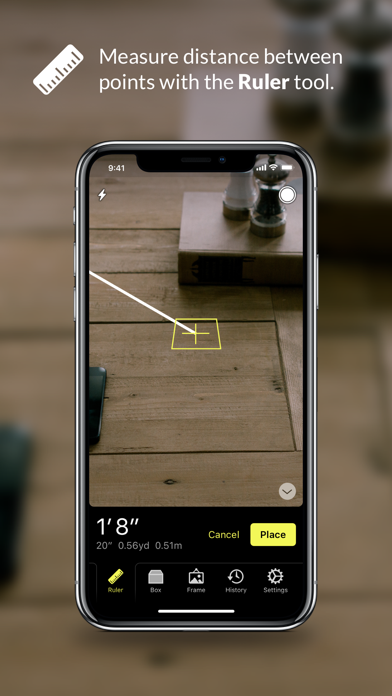
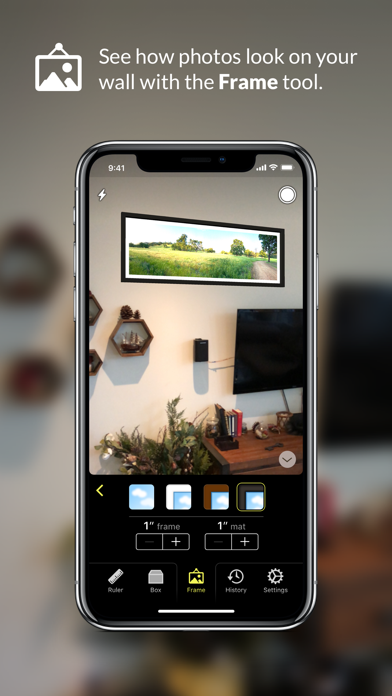
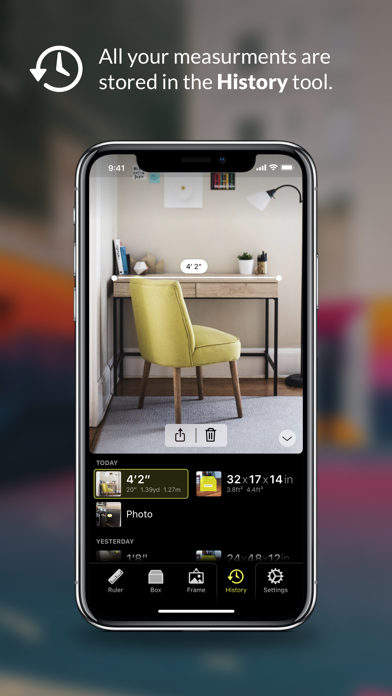
Cubit lets you measure distances with its Ruler tool, visualize the size of objects with its Box tool, and see how your photos look on a wall with its Photo Frame tool. Everything you do is saved in the History tool. Unlike other “AR ruler” apps, Cubit's intuitive UI makes it easy to take accurate measurements. Cubit features include: • Ruler tool - measures distance between points. You can put as many ruler lines in the scene as you like and they're tappable so they can be deleted. The measurement label on the line follows the camera so that it's always visible. • Box tool - visualize the size and position of objects of all kinds. For example, if you're thinking about buying a couch, you can lay a box down of that exact size to see if it will fit in your space. You can then measure around it with the Ruler tool. • Photo Frame tool – put your photos in a virtual frame and see how they look on your wall. Choose from 4 different frame styles. • History tool - see all your previous measurements. Any time you create a ruler line or a box, a photo is automatically taken and stored in History. You can also snap a photo of the scene to History at any time. • Boxes and ruler lines can be placed next to each other so, for example, you could see how much room you'd have from your new couch to the wall next to it. • All lines and boxes are selectable and removable. FAQ: — What kinds of things can Cubit measure? Cubit is best at measuring across horizontal flat surfaces, but can also measure vertical surfaces with less accuracy. — What devices does Cubit work with? Cubit uses Apple's ARKit technology which requires iOS 11 or newer on an iPhone SE, iPhone 6s/6s Plus, iPhone 7/7 Plus, iPhone 8/8 Plus, iPhone X, iPhone XS, iPhone XS Max, iPhone 11, iPad Pro, or 9.7-inch iPad (2017 or newer). — How accurate is Cubit? In our testing with ideal conditions (flat horizontal surface and good lighting), measuring accuracy is around 99%. For vertical surfaces, double-check that the start and end points are correct as you measure. If they are, the measurement should have the same accuracy. — How can I access previous measurements or virtual boxes I placed? Use the included History tool! Cubit automatically takes photos of lines and boxes as you place them, and is even smart enough to automatically update its snapshots if it sees a better photo opportunity arise. — Why “Cubit”? Glad you asked! The cubit is a unit of measurement used by multiple ancient civilizations.