PC 용 MyGIF - GIF from Video!
- 카테고리: Photo & Video
- 최근 업데이트: 2021-07-10
- 현재 버전: 6.0.0
- 파일 크기: 50.67 MB
- 개발자: MekeFactory
- 호환성: 필요 Windows XP, Windows Vista, Windows 7, Windows 8, Windows 8.1 and Windows 10, Windows 11
PC에서 MyGIF - GIF from Video! 용 호환 APK 다운로드
| 다운로드 | 개발자 | 평점 | 점수 | 현재 버전 | 성인 랭킹 |
|---|---|---|---|---|---|
| ↓ PC용 APK 다운로드 | MekeFactory | 3 | 5 | 6.0.0 | 4+ |
에뮬레이터의 중요성은 컴퓨터에서 안드로이드 환경을 흉내 내고 안드로이드 폰을 구입하지 않고도 안드로이드 앱을 설치하고 실행하는 것을 매우 쉽게 만들어주는 것입니다. 누가 당신이 두 세계를 즐길 수 없다고 말합니까? 우선 아래에있는 에뮬레이터 앱을 다운로드 할 수 있습니다.
A. Nox App . OR
B. Bluestacks App .
Bluestacks는 매우 대중적이므로 개인적으로 "B"옵션을 사용하는 것이 좋습니다. 문제가 발생하면 Google 또는 Naver.com에서 좋은 해결책을 찾을 수 있습니다.
Bluestacks.exe 또는 Nox.exe를 성공적으로 다운로드 한 경우 컴퓨터의 다운로드 폴더 또는 다운로드 한 파일을 일반적으로 저장하는 곳으로 이동하십시오.
찾으면 클릭하여 응용 프로그램을 설치하십시오. PC에서 설치 프로세스를 시작해야합니다.
다음을 클릭하여 EULA 라이센스 계약에 동의하십시오.
응용 프로그램을 설치하려면 화면 지시문을 따르십시오.
위 사항을 올바르게 수행하면 소프트웨어가 성공적으로 설치됩니다.
이제 설치 한 에뮬레이터 애플리케이션을 열고 검색 창을 찾으십시오. 지금 입력하십시오. - MyGIF - GIF from Video! 앱을 쉽게 볼 수 있습니다. 그것을 클릭하십시오. 응용 프로그램 창이 열리고 에뮬레이터 소프트웨어에 응용 프로그램이 표시됩니다. 설치 버튼을 누르면 응용 프로그램이 다운로드되기 시작합니다. 이제 우리는 모두 끝났습니다.
그런 다음 "모든 앱"아이콘이 표시됩니다.
클릭하면 설치된 모든 응용 프로그램이 포함 된 페이지로 이동합니다.
당신은 MyGIF - GIF from Video! 상. 그것을 클릭하고 응용 프로그램 사용을 시작하십시오.
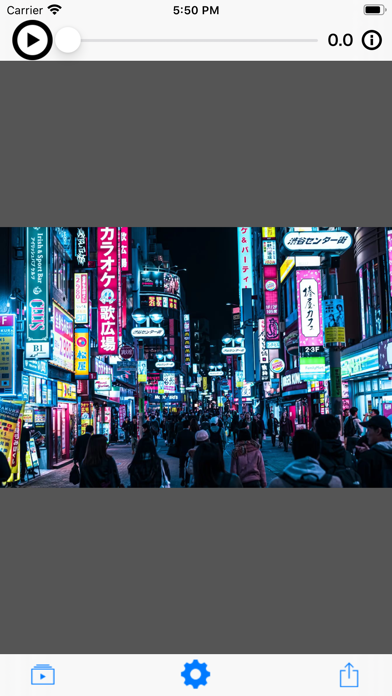
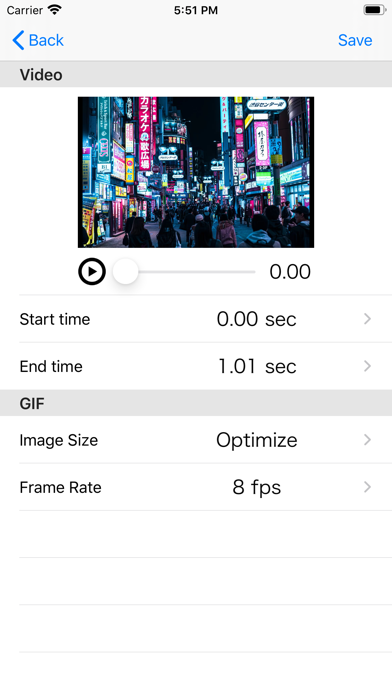
My GIF is an application that creates animated GIFs from videos. Let's take a look at the “Tutorial Video” that can be played from the top screen of the app to know the basic usage. ----basic operation-------------------------- ◆ Watch the tutorial video. 1. Press the camera button at the bottom left of the screen and select “Tutorial”. 2. Press the play button at the top left of the screen to play the tutorial video. ◆ Make GIF from videos. 1. Press the camera button at the bottom left of the screen and select “Album” or “Camera”. 2. Select or shoot the video you want to convert to GIF. 3. Press the play button at the top left of the screen to check the selected video. 4. Press the gear button at the bottom of the screen to open the setting screen. ・ Video-Start position, End position Select the video range to be converted to GIF. ・ Image size Extremely low to high: any size Original: Same size as video size Optimal: Optimal size according to memory usage ·frame rate The number of drawing times per second. ¡The larger the number, the smoother the operation, but the larger the GIF file size. 5. After changing the settings, confirm with the Save button in the upper right. 6. Press the share button at the bottom right and select the share destination. If “Save Image” is selected, the GIF file is saved in the camera roll.