
PC 용 Photo Video Cast to Chromecast
- 카테고리: Photo & Video
- 최근 업데이트: 2025-12-19
- 현재 버전: 4.11.9
- 파일 크기: 28.70 MB
- 개발자: Swishly inc
- 호환성: 필요 Windows XP, Windows Vista, Windows 7, Windows 8, Windows 8.1 and Windows 10, Windows 11
PC에서 Photo Video Cast to Chromecast 용 호환 APK 다운로드
| 다운로드 | 개발자 | 평점 | 점수 | 현재 버전 | 성인 랭킹 |
|---|---|---|---|---|---|
| ↓ PC용 APK 다운로드 | Swishly inc | 28 | 4.46429 | 4.11.9 | 4+ |
호환되는 PC 앱 또는 대안 확인
| 소프트웨어 | 다운로드 | 평점 | 개발자 |
|---|---|---|---|
| Photo Video Cast to Chromecast |
PC 앱 받기 | 4.46429/5 28 리뷰 4.46429 |
Swishly inc |
에뮬레이터의 중요성은 컴퓨터에서 안드로이드 환경을 흉내 내고 안드로이드 폰을 구입하지 않고도 안드로이드 앱을 설치하고 실행하는 것을 매우 쉽게 만들어주는 것입니다. 누가 당신이 두 세계를 즐길 수 없다고 말합니까? 우선 아래에있는 에뮬레이터 앱을 다운로드 할 수 있습니다.
A. Nox App . OR
B. Bluestacks App .
Bluestacks는 매우 대중적이므로 개인적으로 "B"옵션을 사용하는 것이 좋습니다. 문제가 발생하면 Google 또는 Naver.com에서 좋은 해결책을 찾을 수 있습니다.
Bluestacks.exe 또는 Nox.exe를 성공적으로 다운로드 한 경우 컴퓨터의 다운로드 폴더 또는 다운로드 한 파일을 일반적으로 저장하는 곳으로 이동하십시오.
찾으면 클릭하여 응용 프로그램을 설치하십시오. PC에서 설치 프로세스를 시작해야합니다.
다음을 클릭하여 EULA 라이센스 계약에 동의하십시오.
응용 프로그램을 설치하려면 화면 지시문을 따르십시오.
위 사항을 올바르게 수행하면 소프트웨어가 성공적으로 설치됩니다.
이제 설치 한 에뮬레이터 애플리케이션을 열고 검색 창을 찾으십시오. 지금 입력하십시오. - Photo Video Cast to Chromecast 앱을 쉽게 볼 수 있습니다. 그것을 클릭하십시오. 응용 프로그램 창이 열리고 에뮬레이터 소프트웨어에 응용 프로그램이 표시됩니다. 설치 버튼을 누르면 응용 프로그램이 다운로드되기 시작합니다. 이제 우리는 모두 끝났습니다.
그런 다음 "모든 앱"아이콘이 표시됩니다.
클릭하면 설치된 모든 응용 프로그램이 포함 된 페이지로 이동합니다.
당신은 Photo Video Cast to Chromecast 상. 그것을 클릭하고 응용 프로그램 사용을 시작하십시오.
Mac OS 에서 Photo Video Cast to Chromecast 다운로드
| 다운로드 | 개발자 | 점수 | 현재 버전 | 성인 랭킹 |
|---|---|---|---|---|
| 무료 - Mac 에서 다운로드 | Swishly inc | 4.46429 |
4.11.9 | 4+ |
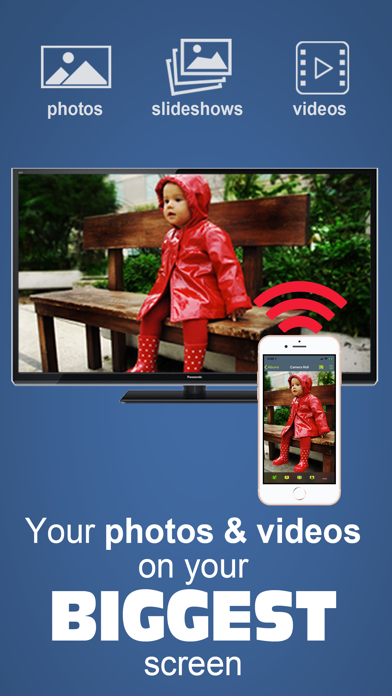
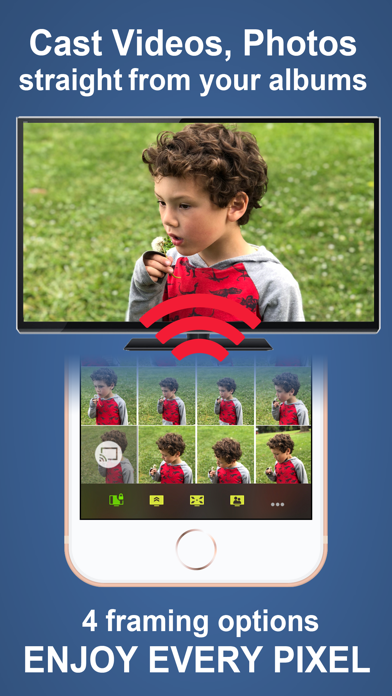
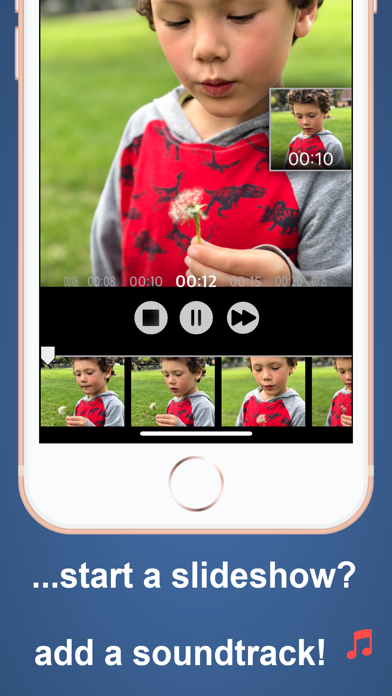
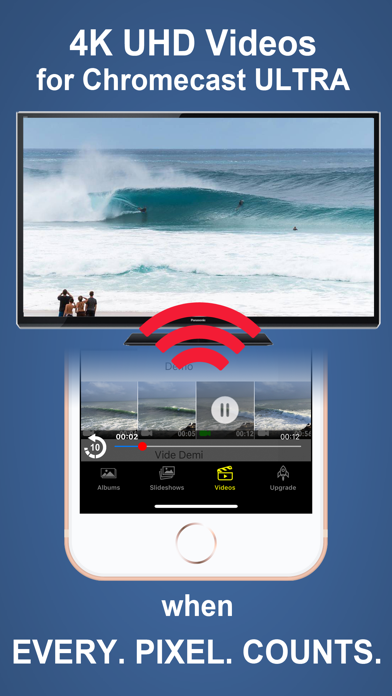
The easiest way to enjoy your own photos & videos on your TV. Photo Video Cast is the #1 chromecast application in its category, with powerful features presented in a straightforward, simple interface. *** App Requires a Chromecast, or a Chromecast-enabled TV *** A REALLY BIG DISPLAY changes everything! • Share your photos and videos on your bug screen TV with family and friends. • Create your own custom slideshows by picking individual photos or entire albums, add songs from your music library to make a soundtrack . • Multiple iPhones/iPads can beam photos & videos to a single screen. • Start a slideshow, and keep it running in the background. • Cast from any application that supports photo sharing. • 5 video resolutions available, up to 4K UHD with Chromecast Ultra! • 4 photo framing modes to make the most of your large screen: - Screen fit (resize photo to fit your TV frame) - Full screen (centered) - Full screen (pan) - Full screen (centered on faces) • Some great features for small businesses & events: - Let the cloud take over: loop your slideshows uninterrupted without tying down your iPhone/iPad. - Turn on multicast to cast slideshows to multiple TVs at the same time. Note that the face detection feature works best when both eyes + mouth are visible, and does not currently work with cloud slideshows. ***** Compatibility ***** If your TV is compatible with chromecast, photo cast will work. In other words, all you need is an HDMI port on your TV. The picture is optimized for your TV's resolution so you will be making the best of your TV. All resolutions are supported ***** Mobile HotSpot (MiFi) users ***** If your WiFi is powered by a Mobile HotSpot (MiFi), your MiFi device may need additional configuration to allow your chromecast dongle to request images from your iPhone/iPad on port 8081/8082 over HTTP. It may just work out of the box, but we recommend trying the following steps if it doesn't: 1. Port filtering should either be completely disabled, or if enabled, HTTP communication should be allowed on port 8081 & 8082 2. Privacy separation should be disabled 3. If all fails, enable port forwarding with these settings - protocol: HTTP - port range: 8081 to 8082 - destination ip: the ip address of the iOS device running photo cast ***** Important Notices ***** - Cloud-powered slideshows will automatically upload your photos to a private cloud. - If you experience frequent buffering with videos, make sure that both your chromecast and your iPhone/iPad have a good wifi signal reception. Should all else fail, pick a lower resolution. - If you are experiencing any issues, please contact us at [email protected]. We can't help you if we don't hear from you!